Wednesday, January 1, 2014

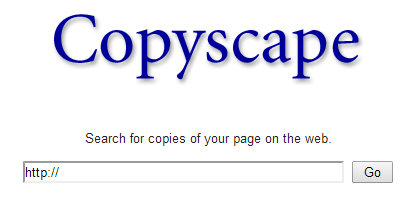
Copyscape : A Website that Search for copies of your page on the web.


Many people think of plagiarism as copying another's work or borrowing someone else's original ideas. But terms like "copying" and "borrowing" can disguise the seriousness of the offense. Plagiarism is the "wrongful appropriation" and "purloining and publication" of another author's "language, thoughts, ideas, or expressions," and the representation of them as one's own original work.

Some of the plagiarism consideration can be of:
  1. turning in someone else's work as your own
  2. copying words or ideas from someone else without giving credit
  3. failing to put a quotation in quotation marks
  4. giving incorrect information about the source of a quotation
  5. changing words but copying the sentence structure of a source without giving credit
  6. copying so many words or ideas from a source that it makes up the majority of your work, whether you give credit or not (see our section on "fair use" rules)

Content scraping is copying and pasting from websites and blogs. Free online tools are becoming available to help identify plagiarism, and there are a range of approaches that attempt to limit online copying, such as disabling right clicking and placing warning banners regarding copyrights on web pages. Instances of plagiarism that involve copyright violation may be addressed by the rightful content owners sending a DMCA removal notice to the offending site-owner, or to the ISP that is hosting the offending site.

Most cases of plagiarism can be avoided, however, by citing sources. Simply acknowledging that certain material has been borrowed and providing your audience with the information necessary to find that source is usually enough to prevent plagiarism. 


Try this Website to check for your copies of pages on the web. Copyscape provides a free plagiarism checker for finding copies of your web pages online. Copyscape uses Google and Yahoo! as search providers, under agreed terms. It provides comprehensive protection for your website by automatically scanning the web daily or weekly and emailing you when new copies of your content are found. It helps in copy-paste originality checks, batch search, private index, case tracking and an API.

Source: http://www.copyscape.com/ and http://en.wikipedia.org/

Hey! My friends, If you like my post you can save it using "Save Page as PDF" button below and you can even share them to your friends with social networking buttons provided below this post.

Add To Google BookmarksStumble ThisFav This With TechnoratiAdd To Del.icio.usDigg ThisAdd To RedditTwit ThisAdd To FacebookAdd To Yahoo

Monday, December 16, 2013

Getting Rid of Spam in Your Gmail Account.


Email spam, also known as junk email or unsolicited bulk email (UBE), is a subset of electronic spam involving nearly identical messages sent to numerous recipients by email. Clicking on links in spam email may send users to phishing web sites or sites that are hosting malware. Spam email may also include malware as scripts or other executable file attachments. Definitions of spam usually include the aspects that email is unsolicited and sent in bulk. They can quickly fill up your email account if you don't do anything about it. Each email server deals with spam in a different way. 


According to Business Week magazine:
In a single day in May [2003], No. 1 Internet service provider AOL Time Warner (AOL ) blocked 2 billion spam messages -- 88 per subscriber -- from hitting its customers' e-mail accounts. Microsoft (MSFT), which operates No. 2 Internet service provider MSN plus e-mail service Hotmail, says it blocks an average of 2.4 billion spams per day. According to research firm Radicati Group in Palo Alto, Calif., spam is expected to account for 45% of the 10.9 trillion messages sent around the world in 2003.


Gmail is good at separating the spam for you so that you can get rid of it more quickly. It is easy to delete the spam and if you want to take it a little farther, you can get some of the spam to stop coming all together.


Opting Out of Spam
  1. Go to Gmail.com
  2. Log in to your Gmail account with your email address and password.
  3. Click on the word "Spam" in the upper left hand corner of your screen.
  4. Open up one of your spam emails and scroll down to the bottom of it.
  5. There should be a link for opting out of receiving future messages.
  6. Click this link to get off of the individual's email list.
  7. You may want to go this route so that you stop receiving messages all together.
  8. See if you have to type your email address in to opt out.
  9. Some companies will automatically take you off their list when You click the "Opt Out" link, but some require you to enter the email address you want to take off from their list.
  10. Click on the "Unsubscribe" link.
  11. You will no longer get spam from them.


To remove spam from your inbox:
  1. Select the message you'd like to report.
  2. Click the spam button in the toolbar above your message list. (If you have the message open, you can also report it as spam by using the same button.)


To remove spam forever:
  1. Click the Spam link along the left side of any Gmail page. (If you don't see Spam along the left side of your Gmail page, click the More drop-down menu at the bottom of your labels list.)
  2. Select the messages you'd like to delete and click Delete forever.
  3. Or delete everything by clicking Delete all spam messages now.


Automatically Delete Spam Messages in Gmail
  1. Open your Gmail Settings by clicking on the Gear button.
  2. Select Filters tab from it.
  3. Now click on Create a New Filter.
  4. Now a window will pop-up, look for the Has the Words field in this window and type “in:spam” without quotes.
  5. Leave all other fields empty and click Create Filter with this Search and select OK to proceed to next step.
  6. Check mark the box Delete it and Also Apply filter to next to Create Filter and click on Create Filter.
  7. Now you will see a message Your Filter was Created.


The more spam you mark, the better our system will get at weeding out those annoying messages. If you or we mark a good message as spam, select the message and click Not Spam at the top of the message. If you marked it as spam, you can also immediately click Undo afterwards to recover the message.

Source: support.google.com and en.wikipedia.org

Hey! My friends, If you like my post you can save it using "Save Page as PDF" button below and you can even share them to your friends with social networking buttons provided below this post.

Add To Google BookmarksStumble ThisFav This With TechnoratiAdd To Del.icio.usDigg ThisAdd To RedditTwit ThisAdd To FacebookAdd To Yahoo

Tuesday, November 26, 2013

Want Your “Microsoft Office Picture Manager” Back in Office 2013 ?

Microsoft Office Picture Manager is a software program included with the Microsoft Office suite versions 2003 through 2010.

The Microsoft Office Picture Manager has been a very quick and easy tool to use, built into Office and readily available no matter what machine I have to use. I would rather not have to install 3rd party software to do what it has made easy to do in the past. If you use Microsoft Office 2013 you probably noticed that unlike previous versions of Microsoft Office, “Microsoft Office Picture Manager” is not included in Microsoft Office 2013.

I was used to using Picture Manager as my default picture editor/manager since it came with Office. As a matter of fact, this little program was very useful for many not-that-advanced users since it includes some basic and helpful features like crop, rotate, brightness, contrast, red eye removal, etc. and also a quick tool to make many pictures smaller for sending via e-mail for example.

Microsoft has made several bad decisions with Office 2013. The lack of Picture Manager is one of them. Windows Live Photo Gallery has feature gaps, as does Word and PowerPoint - compared to Picture Manager. Unfortunately, Windows Live Photo Gallery does not do the jobs as well as Office Picture Manager.Removing functionality from a product suite will only promote users to stay on the current platform and will help competitors like Google who are looking to jump on Microsoft's mistakes.

Do we have to turn to some other 3rd party program? No!! So, how to get back your favorite program????

Solution 1:
To have it back on your computer, there’s a solution. Just download and install “Microsoft SharePoint designer”, and use only one feature of this installer. This software is free to download, and you don’t need any serial number/activation key.

Steps:
1. Download the installer (32 bit, 64 bit).
2. Download the installation pack and run it. Don’t forget to click “Customize“.
3. On this screen, click on every program on the list, and choose “Not Available” from the options list:
4. Next, click on the plus sign next to “Office Tools” in order to expand it, and click on “Microsoft Office Picture Manager” and choose “Run from My Computer”:
5. Click “Continue”. YourMicrosoft Office Picture Manager is now installed.

Solution 2:
Following the below steps you can install missing Picture Manager tool in your system containing the latest Office 2013 version.

1. You can use any Office version setup such as Office 2010, 2007 or 2003. Simply run the Office installer, enter product key and when it asks for installation type, click on “Customize” button

2. Click on each given program link and select “Not Available” from the options list

3. Click on “Microsoft Office Picture Manager” program link present in “Office Tools” section and select “Run from My Computer” option.

You will see a screen similar to following where all program entries except Picture Manager will have a red cross icon on them:

4. Click on "Install now" and the set up will install the program.

Hey! My friends, If you like my post you can save it using "Save Page as PDF" button below and you can even share them to your friends with social networking buttons provided below this post.

Add To Google BookmarksStumble ThisFav This With TechnoratiAdd To Del.icio.usDigg ThisAdd To RedditTwit ThisAdd To FacebookAdd To Yahoo

Saturday, September 14, 2013

107 Command Prompt Shortcuts


Command Prompt is a command line interpreter application available in most Windows operating systems. Command Prompt is officially called Windows Command Processor but is also sometimes called the command shell or by its file name cmd.exe.

Note: Command Prompt is sometimes incorrectly referred to as "the DOS prompt" or as MS-DOS itself. Command Prompt is a Windows program that emulates many of the command line abilities available in MS-DOS but it is not actually MS-DOS.

Command Prompt is used to execute entered commands. Command Prompt is most commonly used to execute batch files, perform advanced administrative functions, and troubleshoot and solve certain kinds of Windows issues.

Command Prompt can be accessed via the Command Prompt shortcut located in the Start Menu or on the Apps screen, depending on what version of Windows you have. Another way to access Command Prompt is via the cmd run command but using the shortcut is probably faster.

To use Command Prompt, you must enter a valid command along with any optional parameters. Command Prompt then executes the command as entered and performs whatever task or function it's designed to perform in Windows.

A large number of commands exist in Command Prompt but their availability differs from operating system to operating system. Command Prompt is available on every Windows NT-based operating system which includes Windows 8, Windows 7, Windows Vista, Windows XP, Windows 2000, as well as Windows Server 2012/2008/2003.

Below is a list of Command Prompt commands, often called CMD commands (and sometimes incorrectly as Command Prompt codes) available from the Command Prompt in Windows 8, Windows 7, Windows Vista, and Windows XP. 

1. Accessibility Controls - access.cpl
2. Accessibility Wizard - accwiz
3. Add Hardware Wizard - hdwwiz.cpl
4. Add/Remove Programs - appwiz.cpl
5. Administrative Tools - control admintools
6. Automatic Updates - wuaucpl.cpl
7. Bluetooth Transfer Wizard - fsquirt
8. Calculator - calc
9. Certificate Manager - certmgr.msc
10. Character Map - charmap
11. Check Disk Utility - chkdsk
12. Clipboard Viewer - clipbrd
13. Command Prompt - cmd
14. Component Services - dcomcnfg
15. Computer Management - compmgmt.msc
16. Control Panel - control
17. Date and Time Properties - timedate.cpl
18. DDE Shares - ddeshare
19. Device Manager - devmgmt.msc
20. Direct X Troubleshooter - dxdiag
21. Disk Cleanup Utility - cleanmgr
22. Disk Defragment - dfrg.msc
23. Disk Management - diskmgmt.msc
24. Disk Partition Manager - diskpart
25. Display Properties - control desktop
26. Display Properties - desk.cpl
27. Dr. Watson System Troubleshooting Utility - drwtsn32
28. Driver Verifier Utility - verifier
29. Event Viewer - eventvwr.msc
30. Files and Settings Transfer Tool - migwiz
31. File Signature Verification Tool - sigverif
32. Findfast - findfast.cpl
33. Firefox - firefox
34. Folders Properties - control folders
35. Fonts - control fonts
36. Fonts Folder - fonts
37. Free Cell Card Game - freecell
38. Game Controllers - joy.cpl
39. Group Policy Editor (for xp professional) - gpedit.msc
40. Hearts Card Game - mshearts
41. Help and Support - helpctr
42. HyperTerminal - hypertrm
43. Iexpress Wizard - iexpress
44. Indexing Service - ciadv.msc
45. Internet Connection Wizard - icwconn1
46. Internet Explorer - iexplore
47. Internet Properties - inetcpl.cpl
48. Keyboard Properties - control keyboard
49. Local Security Settings - secpol.msc
50. Local Users and Groups - lusrmgr.msc
51. Logs You Out Of Windows - logoff
52. Malicious Software Removal Tool - mrt
53. Microsoft Chat - winchat
54. Microsoft Movie Maker - moviemk
55. Microsoft Paint - mspaint
56. Microsoft Syncronization Tool - mobsync
57. Minesweeper Game - winmine
58. Mouse Properties - control mouse
59. Mouse Properties - main.cpl
60. Netmeeting - conf
61. Network Connections - control netconnections
62. Network Connections - ncpa.cpl
63. Network Setup Wizard - netsetup.cpl
64. Notepad - notepad
65. Object Packager - packager
66. ODBC Data Source Administrator - odbccp32.cpl
67. On Screen Keyboard - osk
68. Outlook Express - msimn
69. Paint - pbrush
70. Password Properties - password.cpl
71. Performance Monitor - perfmon.msc
72. Performance Monitor - perfmon
73. Phone and Modem Options - telephon.cpl
74. Phone Dialer - dialer
75. Pinball Game - pinball
76. Power Configuration - powercfg.cpl
77. Printers and Faxes - control printers
78. Printers Folder - printers
79. Regional Settings - intl.cpl
80. Registry Editor - regedit
81. Registry Editor - regedit32
82. Remote Access Phonebook - rasphone
83. Remote Desktop - mstsc
84. Removable Storage - ntmsmgr.msc
85. Removable Storage Operator Requests - ntmsoprq.msc
86. Resultant Set of Policy (for xp professional) - rsop.msc
87. Scanners and Cameras - sticpl.cpl
88. Scheduled Tasks - control schedtasks
89. Security Center - wscui.cpl
90. Services - services.msc
91. Shared Folders - fsmgmt.msc
92. Shuts Down Windows - shutdown
93. Sounds and Audio - mmsys.cpl
94. Spider Solitare Card Game - spider
95. SQL Client Configuration - cliconfg
96. System Configuration Editor - sysedit
97. System Configuration Utility - msconfig
98. System Information - msinfo32
99. System Properties - sysdm.cpl
100. Task Manager - taskmgr
101. TCP Tester - tcptest
102. Telnet Client - telnet
103. User Account Management - nusrmgr.cpl
104. Utility Manager - utilman
105. Windows Address Book - wab
106. Windows Address Book Import Utility - wabmig
107. Windows Explorer - explorer.

Source: www.google.com

Hey! My friends, If you like my post you can save it using "Save Page as PDF" button below and you can even share them to your friends with social networking buttons provided below this post.

Add To Google BookmarksStumble ThisFav This With TechnoratiAdd To Del.icio.usDigg ThisAdd To RedditTwit ThisAdd To FacebookAdd To Yahoo