Saturday, May 31, 2014

Merge Two Images in MS Paint

Paint has come a long way over the years. It is included with every copy of Windows and is more than just a bitmap editor (BMP). The version that comes with Windows 7 and 8 allows us to edit JPG, TIFF, GIF and PNG files and has a better toolbar for editing and cropping.

To edit the photos you take on your camera or phone, there are many options out there , from the complex and expensive Photoshop, to the old stand by MS Paint. Merging images doesn't require the use of powerful software. Microsoft has included a basic photo editor called Microsoft Paint with every operating system since Windows XP. The Microsoft Paint software, included with Windows operating systems provides tools for simple tasks such as combining pictures. It allows an easy and fast process to merge images. It also enables image merging for any size of file in any commonly used image format according to your choice.

Steps:
1 Go to Start-->All Programs-->Accessories-->Paint to open the Microsoft Paint program.

2 Now choose "Open." In the file selection dialog box, highlight the first image to merge and then click the "Open" button.


3 Adjust the image of your requirement by holding the anchor square on the bottom-right corner of the image. 

4 Click on "Paste" and select "Paste From" option. Select your second image from its location on your hard drive and double-click on it. The second image is loaded. It will be pasted on top of the first image. Now, adjust the image of your requirement by holding the anchor square on the bottom-right corner of the image. 


5 Give the new merged image a name by typing it in the "File Name" box and click the "Save" button.


Hey! My friends, If you like my post you can save it using "Save Page as PDF" button below and you can even share them to your friends with social networking buttons provided below this post.

Add To Google BookmarksStumble ThisFav This With TechnoratiAdd To Del.icio.usDigg ThisAdd To RedditTwit ThisAdd To FacebookAdd To Yahoo

Wednesday, April 30, 2014

A Simple Notepad Trick to Increase RAM Speed in a Computer


Is your computer running slow? Is it too slow that the Windows takes more time to start up? The speed of your system depends heavily on the amount of RAM installed and the operability of that RAM. If your computer is lagging or if applications are running slowly, you might have faulty RAM or not enough RAM for the amount of data you're storing.

Looking for a alternative to speed up your computing experience without having to buy a new computer? 

I was wondering if it was possible to increase RAM speeds at smaller increments than what is available in my BIOS settings. And. the question is .... Is there anything I can do to increase the speed of my RAM? Of course YES. A lot of method do exists. But, for now I am not going to discuss all of them on this post. What i am going to do is to show you the way of using a notepad to speed RAM (as simple as it is....isn't it?).

Come on let's try this out.....This notepad tricks make to clean your RAM space and boost up the computer speed.

Steps:

(1) Open "Notepad"

(2) Copy below code and paste it in Notepad.
           
         FreeMem=Space(64000000)


(3) Save Notepad file with “.vbs” extension. (Example: WipeRAM.vbs ).

(4) Close Notepad and Run this file.


Note: You can change RAM memory cleaning command depending upon your RAM size.

Example:
FreeMem= (256000000) - for 256 mb
FreeMem= (128000000) - for 128 mb
FreeMem= (72000000) - for 72 mb
FreeMem= (64000000) - for 64 mb
FreeMem= (32000000) - for 32 mb
FreeMem= (24000000) - for 24 mb

Precautions: Don't select the space that is larger than your RAM capacity.

Hey! My friends, If you like my post you can save it using "Save Page as PDF" button below and you can even share them to your friends with social networking buttons provided below this post.

Add To Google BookmarksStumble ThisFav This With TechnoratiAdd To Del.icio.usDigg ThisAdd To RedditTwit ThisAdd To FacebookAdd To Yahoo

Saturday, March 29, 2014

Do you know how to extract subtitles (Captions) from a YouTube video?

The word "subtitle" is the prefix "sub-" (below) followed by "title". In a YouTube video a "caption" is only available on video where the owner has added them, and on certain video where YouTube automatically provides them. Subtitles exist in two forms: open subtitles are 'open to all' and cannot be turned off by the viewer; closed subtitles are designed for a certain group of viewers, and can usually be turned on/off or selected by the viewer.

Note: The terms captioning and subtitling may be confusing to some readers. Both terms relate to the addition of onscreen text that renders dialogue.  (Sorry! I am not going to list the differences between them, rather i will focus on how to extract them from a YouTube video.)

Subtitles can be used in a lot of ways! You can watch the video in slow mode to learn English, if it is not your mother tongue. You can use video tutorials step by step instructions to learn technique while keeping note. if Subtitles supported by most video players. You can also save the document key value for all videos.

Here are some of the ways you can extract the captions or subtitles from a YouTube video:

Method 1: By Using 4K Video Downloader 
4K Video Downloader allows to download video, audio and subtitles from YouTube in high-quality and as fast as your computer and connection will allow. Please, follow few simple steps to download the video with subtitles from YouTube.

Step 1: Download and install the 4K Video Downloader
Download and install the 4K Video Downloader application from the download page. It's available for Mac OS X, Windows and Linux.

Step 2: Copy the YouTube video link from your address bar in the browser

Step 3: Press "Paste Url" button in 4K Video Downloader application.
Step 4: Choose the quality of video and specify that you want to download subtitles and select a language. After that, click "Download".

Method 2: Extracting the XML file of the video
  • Open the video page in Chrome browser (or any other browser that provides HTTP debugging/Developer Tools) and pause the video
  • Right click anywhere on the page, and click on Inspect Element OR hit the F12 function key.
  • Click on Network tab
  • Under the Network tab look for an item called timedtext. 
  • Right click on it and open that file in a new tab.
  • An xml file containing subtitles with their timestamps (the stuff inside of < >) opens up.

To get rid of the timestamps and just have the plain transcript, here is what you have to do:
  • Open up Microsoft Excel
  • Copy paste the subtitles inside one cell
  • Press Ctrl+H
  • In the replace tab type <*> in the Find What textbox and leave the Replace With  textbox  blank, and click Replace All. The search expression will remove all tags within the original text.
Update: The original URL pattern (struck through) appears to have changed. The subtitles can be fetched only if captions are manually transcribed i.e. not automatically generated

Reading text in a XML file is for machines. To view just the text in a XML (or HTML file), Just paste the XML content in EditPlus and use the Ctrl + Shift + P keyboard shortcut to convert. With other editors (You can try this in Notepad++ & Visual Studio) that support regular expressions, you can paste the XML content into it and use the expression <(.|\n)*?> with the Find and Replace option to get just plain text.


Method 3: By Using Google2SRT
Google2SRT is a tool that can download "not embedded" subtitles (Closed Captions - CC) from YouTube/Google Video videos (if those are present) and convert them to a standard format (SubRip - SRT) supported by most video players. 

On this window you can load a subtitles file from YouTube/Google Video by writing video URL, and choose which subtitles want to convert and where you want to save them.


Now you can enjoy watching your favorite subscribed videos by downloading them with subtitles!

Sources: https://support.google.com/youtube 
             google2srt.sourceforge.net
             http://www.4kdownload.com/

Hey! My friends, If you like my post you can save it using "Save Page as PDF" button below and you can even share them to your friends with social networking buttons provided below this post.

Add To Google BookmarksStumble ThisFav This With TechnoratiAdd To Del.icio.usDigg ThisAdd To RedditTwit ThisAdd To FacebookAdd To Yahoo

Wednesday, February 5, 2014

Able2Extract v8.0.43 - View and Convert PDF File to Word, Excel, PowerPoint, Images, Text, Autocad, HTML, OpenOffice and Publisher

Hello Guys!

I am back with the review of one of the most desired application that you should probably install in your laptop or desktop. 

Portable Document Format (PDF) is a file format used to represent documents in a manner independent of application software, hardware, and operating system. PDF is the de facto standard for the secure and reliable distribution and exchange of electronic documents and forms around the world. We all know that PDF is really a popular format in people's daily life and work. But what if the PDF file contains grammar and spelling mistakes? So, it is an inevitable case that you want to update information or edit text in a PDF.

Boxshot of Able2Extract PDF Converter 8

However, as we know, it is not easy to edit a PDF file, even with the professional PDF tool - Adobe Acrobat.  Also, If you don't want to use online PDF converter and really need to download a desktop application for use, you can try this application as an alternative solution - Able2Extract. This tool is very easy to use and provides high quality conversions. 


Able2Extract PDF Converter is a commercial PDF conversion tool that allows users to convert and transfer their PDF data into more freely editable formats. Able2Extract has options to convert PDF to popular Microsoft Office files such as formatted MS Excel spreadsheets, editable MS Word documents, Publisher files, and PowerPoint presentations. The PDF converter can also accommodate PDF conversion to non-Microsoft formats like AutoCAD (DWG, DXF), Open Office, image formats (jpeg, bmp, png, tiff, etc.), HTML, Text files, and more.

There are some reasons why you need it:

1. PDF editor like Adobe Acrobat is too expensive, costs hundreds of dollars; but a PDF to Word converter is very much cheaper,  it's only 25% of the cost of Acrobat (i.e. below $100)

2. Reduce the time you spend retyping information that are in PDF files by offering different conversion options:

  • PDF to Excel
  • PDF to Word
  • PDF to HTML
  • PDF to Text
  • PDF to PowerPoint
  • PDF to Publisher
  • PDF to Images
  • PDF to AutoCAD
  • PDF to OpenOffice

3. Able2Extract is available on the three major OS platforms: Windows, Mac and Linux.

(Friends! I was overjoyed at the speed that I got my PDF document converted to provided options in the blink of an eye by using this application.) 

What you can achieve from this application?
The Able2Extract interface is user-friendly and simple to navigate. Below are sample screen shots of Able2Extract in operation.

Main Window

Window with an opened PDF File

The File menu will provide users with various conversion options to transform your files.

It can convert PDF Images into popular image formats such as TIFF, JPEG, PNG, BMP, and GIF. User has the ability to designate image dpi, color or black and white and more. I tried the application to change my PDF file to an Image ..... It provided me with various options like JPG, PNG, BMP, GIF, and TIFF. Just an awesome package.... You all would love this software. 

PDF to Image Conversion. (With BMP option Selection)

Here is the Image file what I received after the conversion.

Here are more snapshots of some other conversion you would loved to try with ......

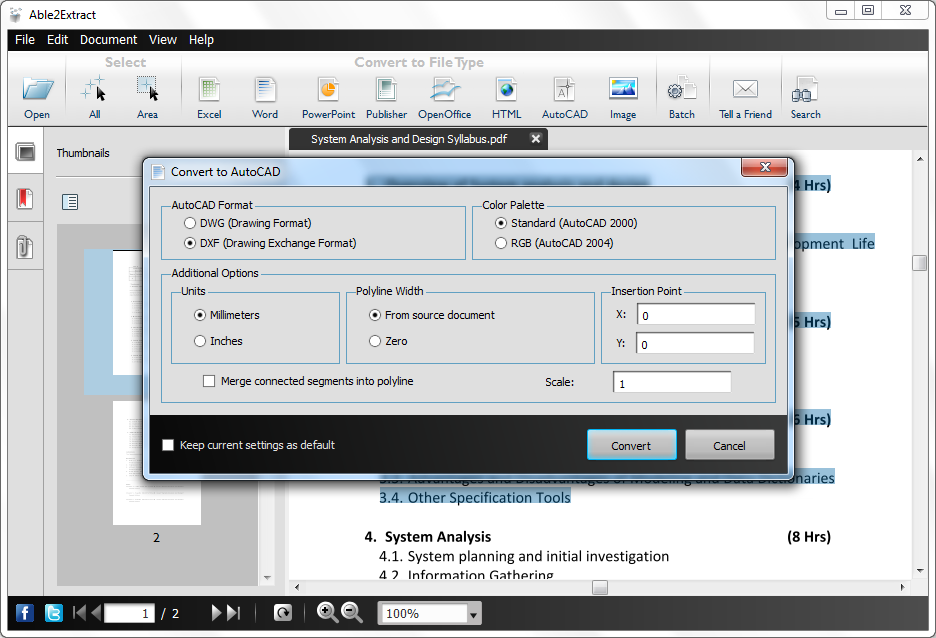
PDF to Autocad
Able2Extract 8 converts PDF to DXF and DWG, the file formats by Autocad. Using this conversion feature, users can recover vector graphics and text from the PDF and place it into Autocad readable formats.

PDF to Autocad Conversion (Since I hadn't installed the supportive application, I am unable to show the converted File)

PDF to Excel
Able2Extract 8's famous PDF to Excel conversion lets users take tabular data from their native and scanned PDF documents and then convert it into perfectly formatted Excel spreadsheets where they can perform their own analysis.
PDF to Excel Conversion

Converted Excel Sheet

PDF to HTML
PDF to HTML Conversion

Converted HTML page

PDF to OpenOffice
Open Office is increasingly seen as the alternative to Microsoft Office. Able2Extract 8 supports conversions from PDF to Writer (Word equivalent), Calc (Excel equivalent) and Impress (Powerpoint equivalent).
PDF to OpenOffice Conversion (With 3 options)

PDF to Powerpoint
Presentations in PDF are recovered and simplified. It is not uncommon to receive presentation slides in PDF. With Able2Exract 8, you can take PDF data and move it into PowerPoint (.PPT, .PPTx) format for easy editing and viewing in your next presentation. 
PDF to Powerpoint Conversion

Converted Powerpoint Slide

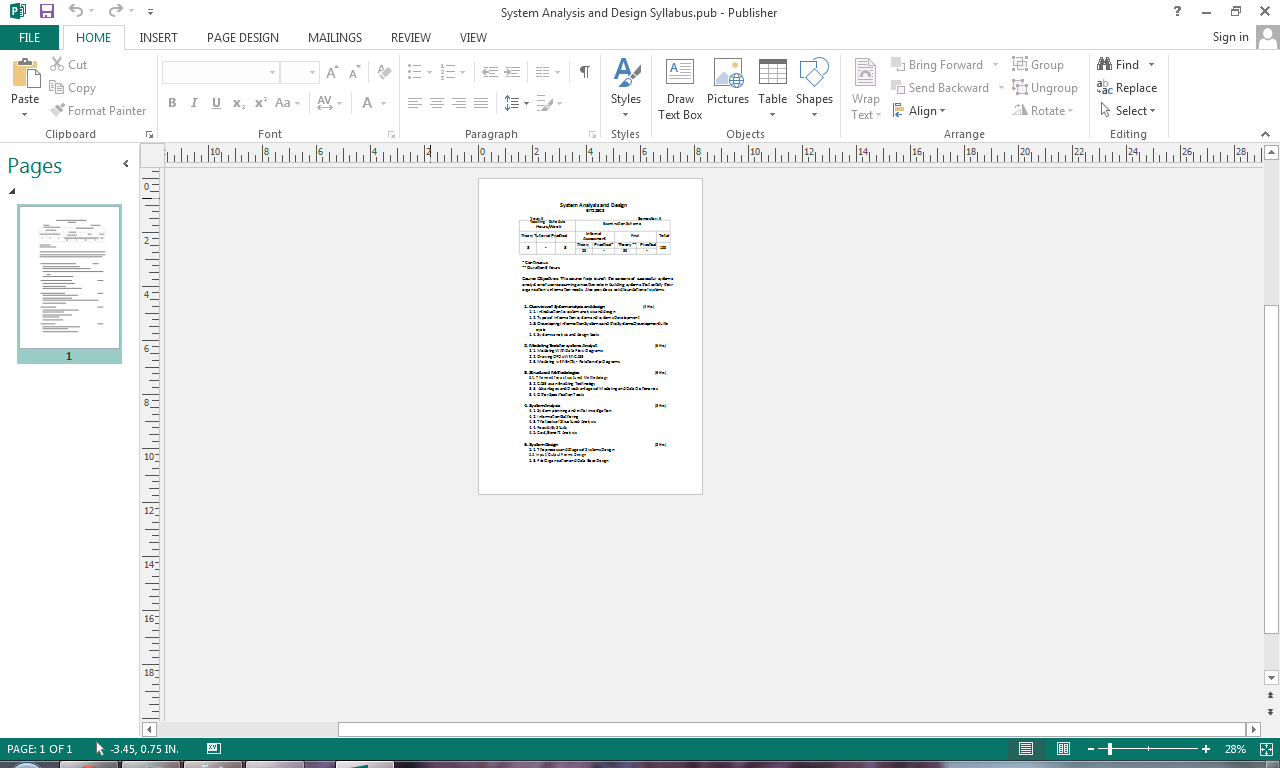
PDF to Publisher
Make Edits in Desktop Publishing. Take PDF content and make it available for editing and revision in Microsoft Office Publisher. A great way to reclaim PDF content in the very well-established desktop publisher included with Office and then make edits within the software.
PDF to Publisher Conversion

Converted Publisher Document

PDF to Text
PDF to Text Conversion

Converted Text File

PDF to Word
Able2Extract 8's PDF to Word conversions preserves the layout, formatting, and graphics of the PDF within MS Word. Conversions retain the look and feel of even the most complex PDF documents. Conversion output options a both .doc or .docx format. Able2Extract also offers PDF to Forms conversion for native PDF forms, which allows users to fill out their PDF forms in MS Word. 
PDF to Word Conversion

Converted Word Document

What more can you do with Able2Extract?
You can control the conversion using the "Options" from the "View" menu.


Another great thing about Able2Extract is that it supports batch conversion, so you can convert multiple documents at the same time from a single window. This time however you won't be able to pick just some specific parts to convert, as the tool only works with the whole document, but it still comes in handy when having to deal with multiple PDFs for example. All things considered, Able2Extract is undoubtedly one of the best apps of its kind on the market and it definitely deserves at least a try.

I have given my try .... You guys can also have a try by downloading from the link given below. Able2Extract can be downloaded for seven-day free trial from the Investintech website. The software is available for professional and personal use.In addition to a 7 day free trial, Able2Extract is also available for single, volume, and subscription licensing. (I have my subscribed licenced version. You too can purchase it.)

Compatible Operating Systems:
Able2Extract 8.0 was released on November 29, 2013 and was one of the application’s most significant upgrades to date. This was the first cross-platform compatible version to run on both Mac and Linux operating systems in addition to Windows.


  • Windows 8, Windows 7, Windows Vista, XP SP3/2003 SP3/Vista SP2/7/2008/8 or newer, x32 or x64 edition
  • Mac OS X 10.5.8 (Leopard)/10.6.1 (Snow Leopard)/10.7 (Lion)/10.8 (Mountain Lion) or newer, x32 or x64 editions
  • Fedora 15 or newer, Ubuntu 10.04, 11.04 or newer, x32 or x64 editions
Download Able2Extract v8.0.43 from Here

Source: http://www.investintech.com/ and http://en.wikipedia.org/

Hey! My friends, If you like my post you can save it using "Save Page as PDF" button below and you can even share them to your friends with social networking buttons provided below this post. Please give your feedback and share this post.

Add To Google BookmarksStumble ThisFav This With TechnoratiAdd To Del.icio.usDigg ThisAdd To RedditTwit ThisAdd To FacebookAdd To Yahoo